JupyterLab Jobs
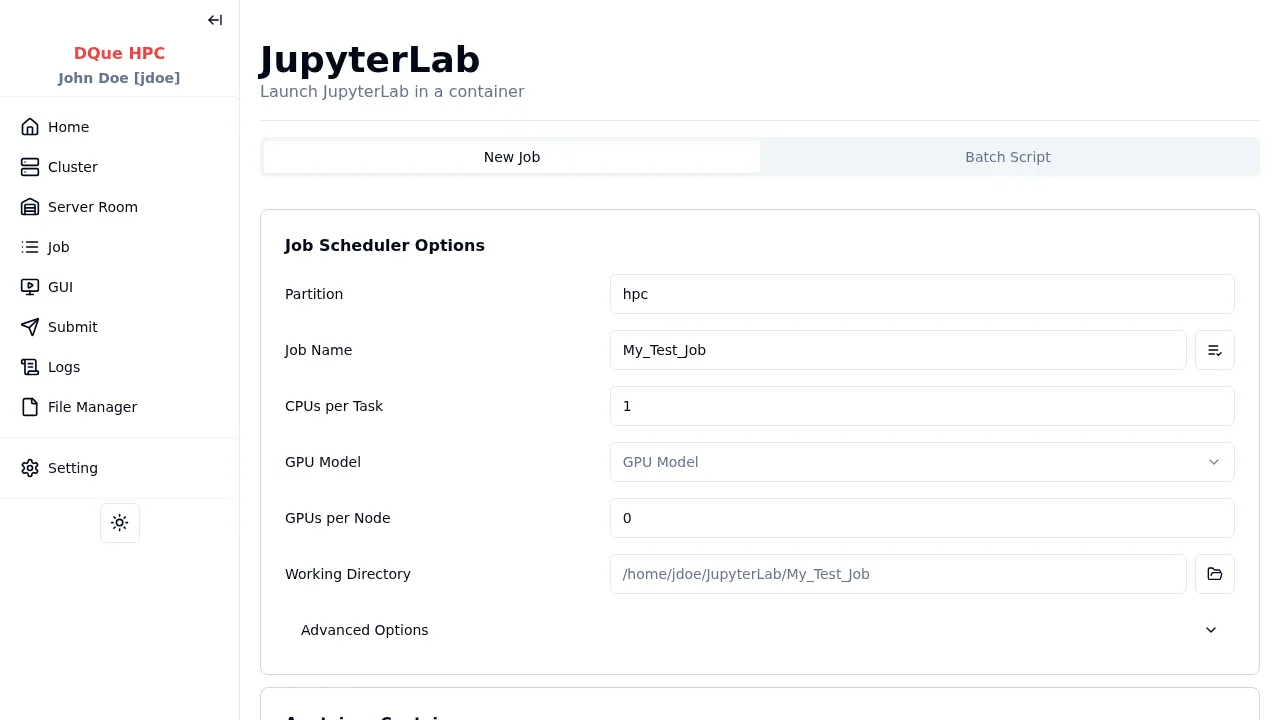
This page explains how to launch a JupyterLab instance as an interactive job on the HPC cluster using a pre-configured Apptainer container.
Job Submission Tabs
Section titled “Job Submission Tabs”Similar to General jobs, the form includes tabs like “New Job”, “Batch Script”, and “Setting”. This guide focuses on the “New Job” tab for launching JupyterLab.
New Job Tab
Section titled “New Job Tab”
1. Job Scheduler Options
Section titled “1. Job Scheduler Options”Configure the resources for your JupyterLab session:
- Partition: Select the appropriate partition (e.g.,
hpc). - Job Name: Assign a name (e.g.,
My_Test_Job). - Number of Nodes: Typically set to
1for a single JupyterLab instance. - CPUs per Task: Specify the number of CPU cores needed for your session (e.g.,
1). - GPU Model: Select a GPU if required by your notebooks.
- GPUs per Node: Specify the number of GPUs required (e.g.,
0or1). - Working Directory: The directory where JupyterLab will start and save notebooks by default.
2. Apptainer Container Settings
Section titled “2. Apptainer Container Settings”These settings are usually pre-filled for the standard JupyterLab environment:
- Container Path (Prefix: jupyter): The path to the Apptainer image containing the JupyterLab environment (e.g.,
/home/Containers/jupyter-pytorch_24.12.sif). This path is critical and typically managed by the system administrators. - New Environment Variable: Add any specific environment variables needed for your Jupyter session inside the container.
3. Submission
Section titled “3. Submission”- Redirect to Job Monitor after submission: Check this to automatically go to the Job Monitoring page after submission.
- Submit Button: Launches the JupyterLab session as a Slurm job.
Once the job starts running, you will typically receive connection details (like a URL with a token) in the job’s log file, which you can access via the Job Logs page.
Accessing JupyterLab via Browser
Section titled “Accessing JupyterLab via Browser”When your JupyterLab job starts running, you can access it directly through your web browser by following these steps:
- Go to your job details page in the Job Monitor
- Click the “Open JupyterLab” button that appears when your job is running
- You’ll be redirected to the JupyterLab login page where authentication is required
Using the Authentication Token
Section titled “Using the Authentication Token”JupyterLab uses token-based authentication to secure your session. To log in:
- On the job details page, click the “Copy Token” button to copy the authentication token to your clipboard
- In the JupyterLab login page, paste the token into the “Password or token” field
- Click “Log in” to access your JupyterLab environment
Alternative Authentication Methods
Section titled “Alternative Authentication Methods”You can also:
- Set up a password for future logins by using the “Setup a Password” section at the bottom of the login page
- Use the token directly in the URL: append
?token=your_token_hereto the JupyterLab URL
Working with JupyterLab
Section titled “Working with JupyterLab”Once logged in, you’ll have access to the full JupyterLab interface running on the cluster resources you specified. You can:
- Create new notebooks, text files, terminals, and more
- Access files in your working directory
- Install Python packages (if the container permits)
- Run computations using the allocated CPU/GPU resources
All computations happen on the cluster, utilizing the resources you specified in your job submission, while the interface is delivered to your web browser.