Skip to content

Cluster

This page provides a real-time overview of the HPC cluster’s status and resource utilization.

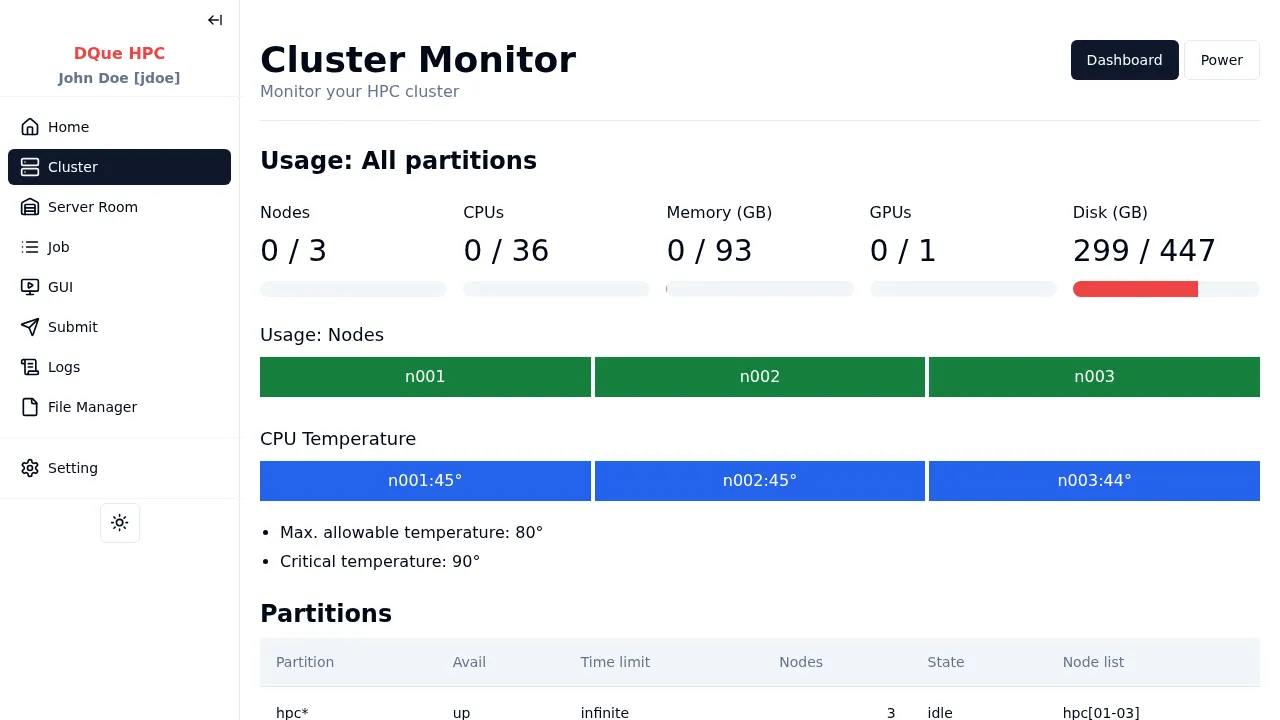
Cluster Monitoring Screen
  • Overall Usage (All Partitions): Displays the current usage across the entire cluster for key resources:
    • Nodes: Number of active nodes out of the total available (e.g., 4 / 5).
    • CPUs: Total allocated CPU cores versus the total available cores (e.g., 24 / 60).
    • Memory (GB): Total allocated memory versus the total available memory (e.g., 124 / 155 GB).
    • GPUs: Total allocated GPUs versus the total available GPUs (e.g., 0 / 1).
    • Disk (GB): Total used disk space versus the total available disk space (e.g., 234 / 447 GB).
  • Node Usage Bars: Visual representation of the status or load for individual nodes (e.g., n001, n002, etc.).
  • CPU Temperature: Shows the current temperature for each node’s CPU, along with the maximum allowed and critical temperature thresholds.
  • Partitions Table: Lists the available Slurm partitions with details:
    • Partition: Name of the partition (e.g., hpc*, hpc).
    • Avail: Availability status (e.g., up).
    • Time limit: Maximum runtime allowed for jobs in the partition (e.g., infinite).
    • Nodes: Number of nodes associated with the partition.
    • State: Current state of the partition (e.g., mixed, idle).
    • Node list: The nodes belonging to the partition (e.g., hpc[01-04]).
  • Nodes Table: Provides detailed information about each individual node:
    • Node: Node hostname (e.g., hpc01).
    • Partitions: The partition(s) the node belongs to.
    • State: Current state of the node (e.g., MIXED).
    • CPU Alloc: Number of allocated CPU cores.
    • Mem Alloc (GB): Amount of allocated memory.
    • GPU Alloc: Number of allocated GPUs.
    • CPU Usage (%): Current CPU utilization percentage.
    • Mem Usage (%): Current memory utilization percentage.
    • GPU Usage (%): Current GPU utilization percentage.

Clicking the Open Dashboard button in the top right corner opens the Cluster Monitoring Dashboard page, which provides more detailed historical data and granular metrics.