

CodeServer
Launch a browser-based VS Code development environment (code-server). Unlike batch jobs, CodeServer runs as a persistent service on the master node.
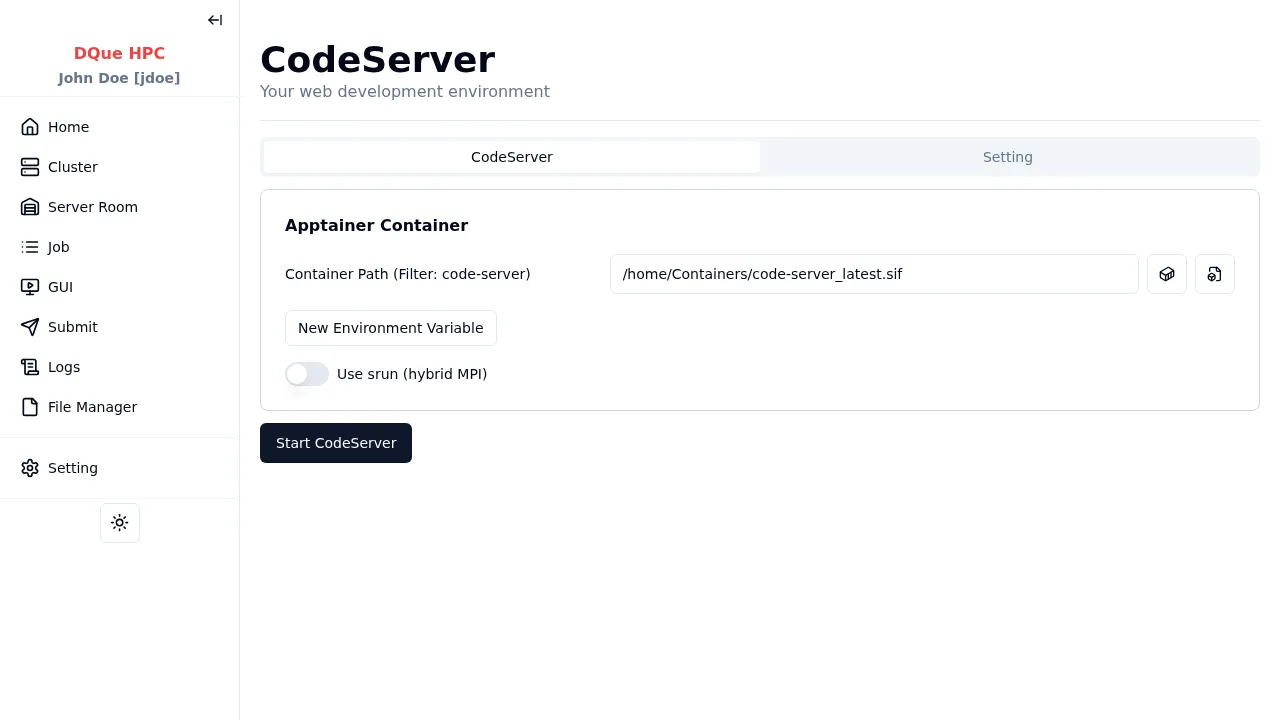
Step 1: Apptainer Container Configuration
Section titled “Step 1: Apptainer Container Configuration”- Container Path — path to the Apptainer container with code-server installed (required). Select from the dropdown or browse for a custom path.
- Environment Variables — optional variables to export inside the container.
Step 2: Start CodeServer
Section titled “Step 2: Start CodeServer”Click Start CodeServer to launch the service. The page updates to show connection controls once CodeServer is running.
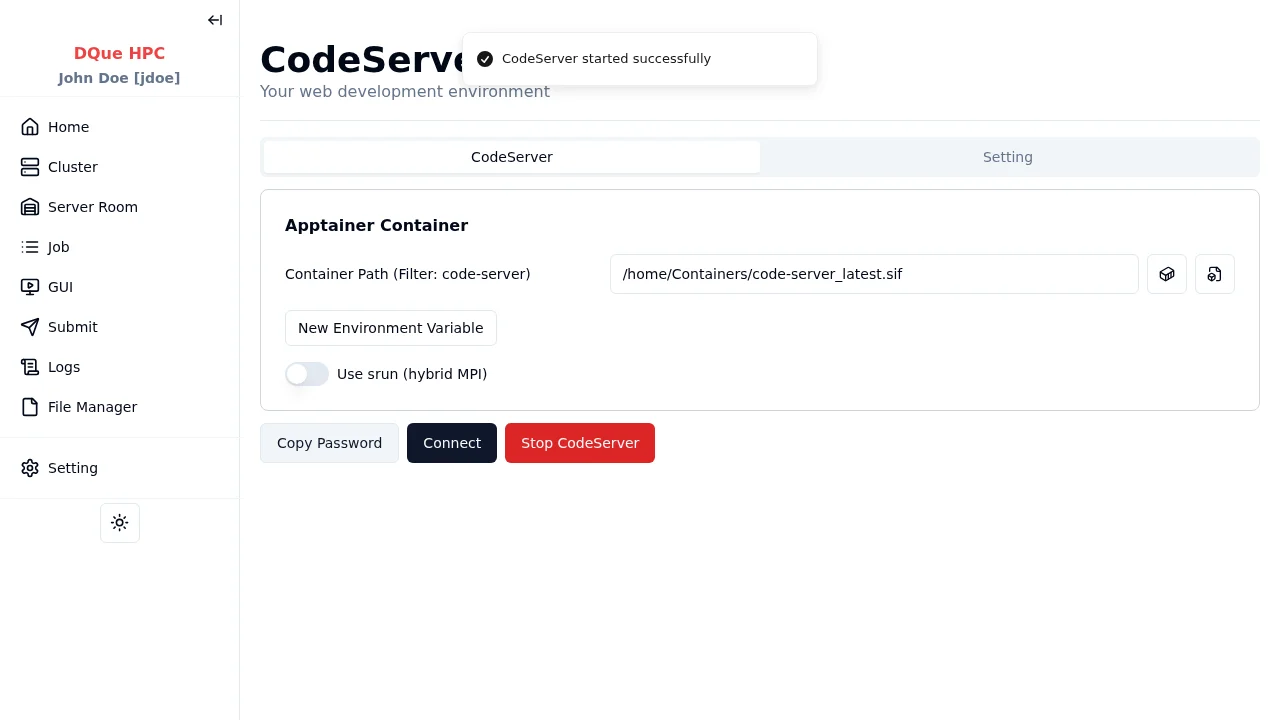
Step 3: Connect
Section titled “Step 3: Connect”- Click Copy Password to copy the session password to your clipboard.
- Click Connect to open the CodeServer login page in a new browser tab.
- Paste the password and click Submit to access the VS Code interface.
Step 4: Stop CodeServer
Section titled “Step 4: Stop CodeServer”When finished, return to the CodeServer page and click Stop CodeServer to terminate the session.
The session also appears on the GUI Sessions page under Development Sessions, where you can connect or stop it.