Job Templates
Job Templates allow you to save frequently used job commands or script snippets so you can easily reuse them when submitting new jobs. This feature is accessible from the Setting menu.
Overview
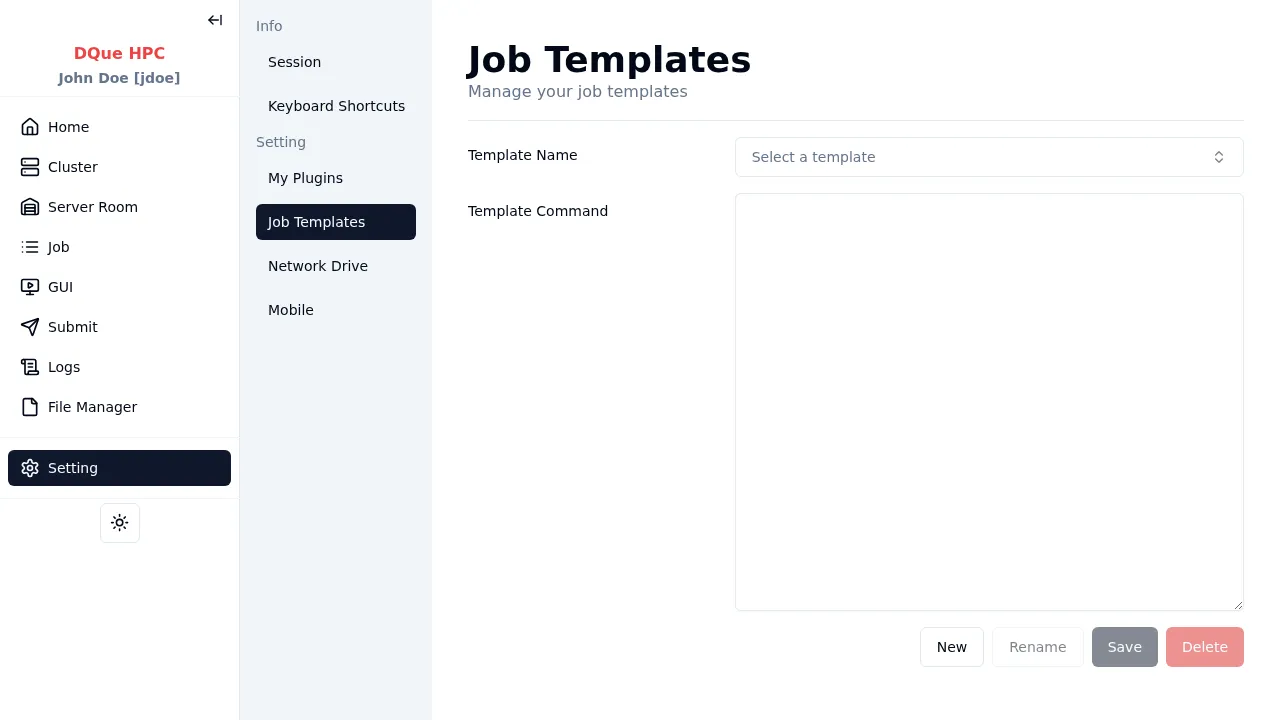
Section titled “Overview”The Job Templates screen is divided into a few key areas:
- Template List (Left Pane): Displays all your saved job templates. Click on a template name (e.g., “count”) to view or edit its details.
- Template Details (Right Pane): Shows the details of the selected template.
Template Name: The name of the template.Template Command: The actual command or script saved in the template. This is typically a multi-line text area.
- Action Buttons (Bottom Right): Provides actions to manage templates:
New: Creates a new, empty template for you to fill in.Rename: Allows you to rename the currently selected template.Save: Saves any changes made to the selected template’s name or command.Delete: Permanently removes the selected template.
Managing Templates
Section titled “Managing Templates”- Creating a New Template:
- Click the
Newbutton. - Enter a
Template Namein the right pane. - Type or paste your desired command script into the
Template Commandarea. - Click
Save.
- Click the
- Editing an Existing Template:
- Select the template from the list on the left.
- Modify the
Template Name(requires clickingRenamefirst, likely) or theTemplate Command. - Click
Save.
- Renaming a Template:
- Select the template from the list.
- Click the
Renamebutton. - Enter the new name.
- Click
Save.
- Deleting a Template:
- Select the template from the list.
- Click the
Deletebutton. - Confirm the deletion if prompted.